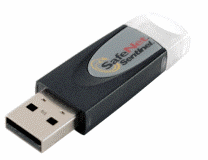
• I recently had a problem with a Sentinel USB dongle that was required for a piece of software to allow multiple users. You may have run into these before:

    I found it very difficult to find out if the key was connected unless I went into the device manager in the system itself. I did find out that there is a local website on the system it is connected to that can tell you the status.

    http://localhost:6002 or http://localhost:7002

    The service that creates this website can be found under services:


    And the website is unfortunately JAVA applet based so I can’t find a way to monitor effectively with WhatsUp Gold yet.

    For more information about these please go to the manufacturer’s website http://sentinelcustomer.safenet-inc.com/


  • One of the most important things you can do is backup your infrastructure servers. Obviously DHCP is a critical service without it many devices cease to function on a reboot. We have DHCP servers with multiple scopes defined to take care of different subnets on the network for IP [phones, wireless AP and clients and there can be a significant amount of configuaration and documentation required to restore that service when it is lost. In a crisis it is most important to get that service up and running as soon as possible without trying to restore the entire server from a backup.

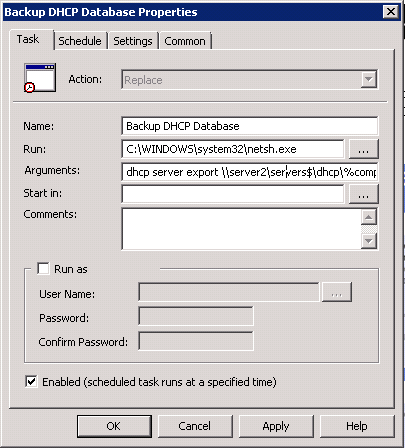
    DHCP is the lifeblood of a large network so backing it up should be important and not left to the simple backup of the domain controller. It is rather simple to backup from the management console by right clicking and choosing backup but this is far from automated and you still need to copy the file off the server to make it useful. There is a command line that can be used to complete this same task and even save the file to another server using the UNC path.


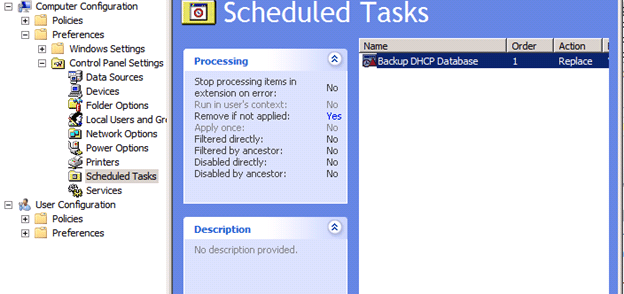
    The best thing is to automate this process so I recommend using the Scheduled Task component under Group policy Preferences and applying it the OU your DHCP servers are in., within my environment that is the Domain Controllers OU.

    The policy is rather simple:

    A scheduled task under the Computer Configuration section

    And schedule it to run daily be sure to add the domain computers group to have full controller over the share you are asking them to backup the file to. Since we didn’t specify a credential in the RUN AS section (there is good reason not to,  the password is stored in Active Directory and can be read)


  • I have found one of the main issues with FIT Aps on WX Controllers is the inability to monitor them effectively. I wish there was a way to monitor them with SNMP directly but it is disabled in most models. I have found that you can enable syslog via config file. I add a config file to all devices with a simple line below, this enable syslog to a server of IP 192.168.1.1.


    Info-center loghost 192.168.1.1


    To perform this create a text file of just this setting and upload it your controller via the webpage or tftp. Now under each configured AP add the file name I always add it under autoap config. In this example the file is called 7760config.txt.


    The first thing I found out was that many of my FIT Aps were complaining (to themselves until I added the syslog) that the MAC-Address Table was full due to having too many VLANs trunked to the AP ports.


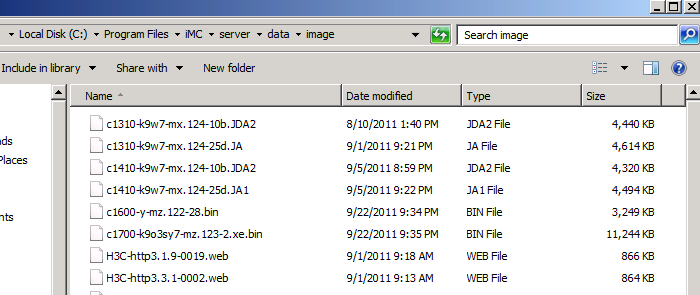
  • So now you know where your configurations are stored on the IMC server. But where are your software images you imported to the “Software Library”?

    Under %program files%\iMC\server\data\image

  • I utilize IMC from HP to manage and maintain many devices in my network. A big question I had was: Where is IMC storing my configuration files from my devices? I decided to just perform a search on my drive the other day to find my configs.

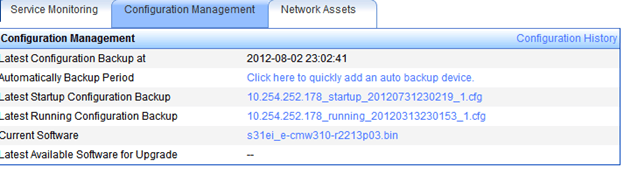
    They are located under %program files%\iMC\server\data\cfgbak

    They are stored using the same name as displayed under the

  • During a recent upgrade we went from 100 MB VoIP phones to Gigibit VoIP phones this caused some issues primary related to the wiring in the building. While all of it was either 5e or 6 we ended up having a lot of bad jacks that needed to be re-jacked due to damage from chairs, desks, cables, keystones pushed or pulled out, and general wear and tear. The big issue was everything was working fine prior to the upgrade but after the upgrade some ports would power the phones but they would show not connected to the network at all. These are steps I went thru on our Procurve 3500yl / 5400zl / 8200zl switches to identify the problem ports.

    From a enable prompt

    # show power-over-ethernet brief | include Delivering


    This will show all ports actively giving power

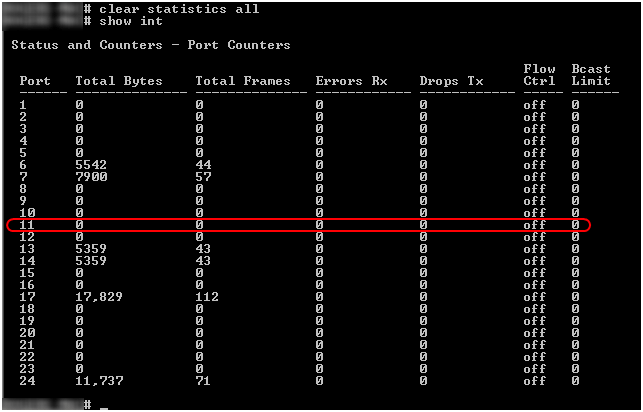
    # clear statistics all

    This will clear the statistics on all ports

    # show interface


    This will show all the ports and the key is looking for a port that shows having power but has no Total Bytes or Total Frames.

    This is most likely an issue of gigabit not being able to be negotiated on the cable. While the best solution is to identify the wiring problem that doesn’t help the users that phone/equipment isn’t working. The second best is to set the port to 10/100.

    # conf

    (config)# int 11

    (eth-11)# speed-duplex auto-10-100

    (eth-11)# exit

    (config)# exit

    #

    Trust but verify

    # clear statistics all

    This will clear the statistics on all ports

    # show interface

    And of course while the best solutionis to have all the jacks checked that could take sometime so make sure you save and backup your config.

    #WR MEM


  • Like many things in the H3C world shortcut keys are not well documented here are the one I use every day. I will add more as I find them.

    Ctrl-K display ip routing-table
    Ctrl-O undo debugging all
    Ctrl-G display current-configuration
    Ctrl-A Beginning of Command Line
    Ctrl-E End of Command Line
    Ctrl-N Next Command in the history buffer
    Ctrl-P Previous Command in the history buffer
  • Since the even with the configuration guides I found and uploaded configuration of the Wireless Controller still has some details not in the guides. I thought I would upload my confguration of my wireless as an example. I am using EAP based WPA/WPA2 security to a Windows 2003 Radius Server specifically an internal PKI . This is based on an existing IAS Server infrastructure and just adding the Wireless Controller as a new Radius Client. I have two SSIDs one for guests called GUEST-WIFI on an internet access vlan (VLAN 80) and a SECURED-WIFI for end-users on VLAN 1 using WPA/WPA2.

    On the controller the following needs to be configured:


    #

    domain default enable system

    #

    port-security enable

    #

    dot1x authentication-method eap

    #

    radius scheme ias

    server-type extended

    primary authentication IASSERVERIP

    primary accounting IASSERVERIP

    key authentication SHAREDKEY

    key accounting SHAREDKEY

    timer realtime-accounting 3

    user-name-format keep-original

    nas-ip ACCESSCONTROLLERIP

    undo stop-accounting-buffer enable

    accounting-on enable

    #

    #

    domain ias

    authentication default radius-scheme ias

    authorization default radius-scheme ias

    accounting default radius-scheme ias

    access-limit disable

    state active

    idle-cut disable

    self-service-url disable

    #

    wlan radio-policy rp

    beacon-interval 500

    #

    wlan service-template 1 clear

    ssid GUEST-WIFI

    bind WLAN-ESS 0

    user-isolation enable

    service-template enable

    #

    wlan service-template 2 crypto

    ssid SECURED-WIFI

    bind WLAN-ESS 1

    cipher-suite tkip

    cipher-suite ccmp

    security-ie rsn

    security-ie wpa

    service-template enable

    #

    #

    interface WLAN-ESS0

    port access vlan 80

    #

    interface WLAN-ESS1

    port-security port-mode userlogin-secure-ext

    port-security tx-key-type 11key

    dot1x mandatory-domain ias

    #

    #

    wlan ap autoap model 7760_2750 id 3

    serial-id auto

    radio 1

    radio-policy rp

    service-template 1

    service-template 2

    radio enable

    On the IAS server a new radius client needs to be configured.


  • One of the issues I found with having H3C/3Com now HP products over the last few years is the lack of support for senarios that are described but never documented. While desciption  of features exist configuration guides or FAQ seem non-existent. I recently purchased a S7500 controller blade at work for our new core to move over our existing 7760 series Access Points from 3CRUS2475 switches over to a more robust solution designed to handle our  70+ APs. I just wanted to take this time to document the way 7760 discovered the 3CRUS2475.

    1. 3Com Access Point sends a UDP port 42004 to broadcast searching for Wireless Switch with the model number of the  access point
    2. DNS Discovery for hostname 3ComUWS: 1 DNS request stops if no name found
  • One of the issues I found with having H3C/3Com now HP products over the last few years is the lack of support for scenarios that are described but never documented. While desciption  of features exist configuration guides or FAQ seem non-existent. I recently purchased a S7500 controller blade at work for our new core to move over our existing 7760 series Access Points from 3CRUS2475 switches over to a more robust solution designed to handle our  70+ APs. The first step is to update the managed firmware in the device from the firmware that ships meant for management by the Unified Wireless Switch 3CRUS2475 to the H3C fit managed mode. I just wanted to take this time to document the differnet ways it seem you can configure these to discover the Access Controller.

    1. IPv4 Broadcast Discovery 255.255.255.255 from/to port 12223:  3 packets detailing that it is a discovery packet and the model and serial number of the device.
    2. DNS Discovery for hostname 3ComWLC: 1 DNS request stops if no name found
    3. IPv6 Multicast Discovery FF02:1 from/to port 12223 : 3 Packets again detailing that it is a discovery packet and the model and serial number of the device.

    This then repeats if  no controllers are found. The additional options for manually configuring the device exist:

    Log in via the console port  or telnet in password is “h3capadmin”

    <7760_2750> sys

    [7760_2750] wlan ac ip “ip address”

    or

    [7760_2760] wlan ac ipv6 “ipv6 address”

    [7760_2750] quit

    <7760_2750> save

    Hope this helps….